How Two-Factor Authentication Actually Protects Your Accounts (And Why I Wish I'd Set It Up Sooner)
I remember the exact moment I realized I'd been living dangerously online for years.
It was a Tuesday morning. I opened my Gmail and found three "Did you sign in from Romania?" alerts. I hadn't. Someone had my password — the same password I'd been using since college, recycled across about a dozen accounts. My stomach dropped. By the time I changed everything, two accounts had already been accessed and one had been used to send a bunch of strange messages to my contacts.
That was my wake-up call. And the fix that changed everything for me? Two-Factor Authentication — or 2FA, as most people call it.
If you've heard the term but never quite got around to setting it up, this article is for you. I'm going to walk you through exactly what it does, how it works in real life, and why it's honestly one of the easiest security upgrades you'll ever make.
So What Actually Happens When You Enable 2FA?
Think of your account like a house. Your password is the front door key. Now imagine even if someone steals that key — they still can't get in because there's a second lock that only you can open, using something on your phone or another device.
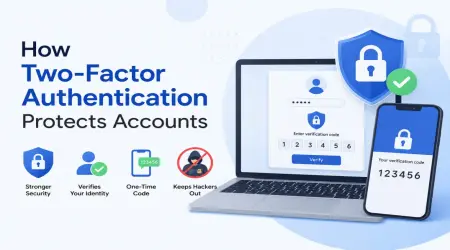
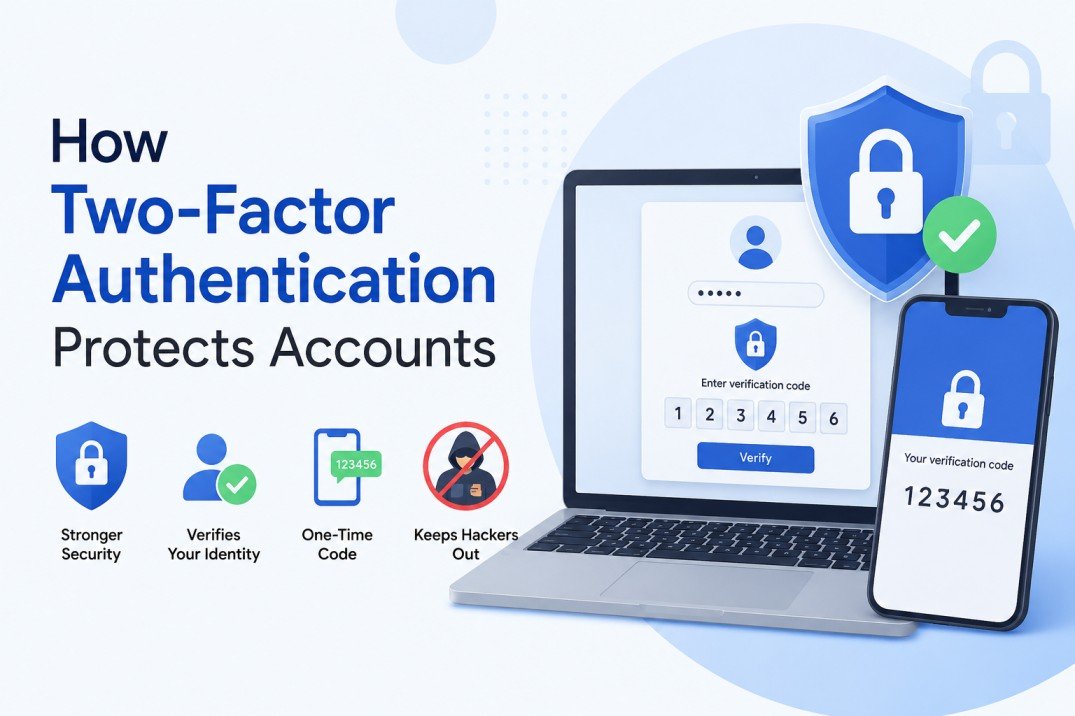
That's 2FA in a nutshell. When you log in, you enter your password as usual. Then the platform asks for a second piece of proof — usually a short code that expires in 30 seconds, or a push notification asking "Was this you?"
The brilliant part? Even if a hacker somehow gets your password (through a data breach, phishing, or just guessing), they can't get past that second step unless they physically have your phone or your authentication device. And in most cases, they don't.
The Three Main Types of 2FA (One Is Way Better Than the Others)
Not all 2FA is created equal, and this is something I learned the hard way.
1. SMS Text Message Codes
This is the most common type — you enter your number, and the platform texts you a 6-digit code.
It's better than nothing. But it's also the weakest form of 2FA. There's a real attack called SIM swapping where a bad actor convinces your mobile carrier to transfer your number to their SIM card. Once they do that, they receive your texts instead of you.
I'm not saying this to scare you — it's relatively rare and usually targets high-profile people. But if you can use something stronger, do it.
2. Authenticator Apps (This Is the One You Want)
Apps like Google Authenticator, Authy, or Microsoft Authenticator generate time-based codes that rotate every 30 seconds. These codes are generated locally on your device and never travel over a network — which makes them much harder to intercept.
I switched to Authy after my scare, and honestly, using it takes about 5 extra seconds per login. It's barely noticeable.
3. Hardware Security Keys
These are physical USB or NFC devices like the YubiKey. You plug it in (or tap it to your phone) and you're in. This is the gold standard — even Google gives these keys to all their employees and reportedly reduced account takeovers to near zero.
For most regular users, an authenticator app is the sweet spot between security and convenience. Hardware keys are great if you have high-value accounts or work with sensitive data.
How to Set Up 2FA on Your Most Important Accounts
Let me walk you through the process for some of the platforms you probably use daily. It's simpler than you think.
Gmail / Google Account
- Go to myaccount.google.com
- Click on Security in the left sidebar
- Under "How you sign in to Google," click 2-Step Verification
- Follow the prompts — Google will let you choose between a text, a Google prompt on your phone, or an authenticator app
- I recommend selecting Authenticator app for the strongest protection
Facebook / Instagram (Meta)
- Go to Settings & Privacy → Settings → Security and Login
- Scroll to Two-Factor Authentication
- Click Edit and choose your preferred method
- For Instagram, go to Settings → Security → Two-Factor Authentication
Email Accounts (Including Temporary Email Services)
If you manage email accounts — whether personal inboxes or services like mail-temp-mail.xyz where you use temporary addresses to protect your real inbox — always check if there's an account security section where 2FA can be enabled. Any account that holds access to your other accounts is high priority. Your primary email is especially important because it's usually the recovery option for everything else you own.
Apple ID
- Go to Settings on your iPhone → tap your name at the top
- Select Password & Security
- Tap Turn on Two-Factor Authentication
- Apple uses trusted devices and phone numbers to verify you
Microsoft / Outlook
- Visit account.microsoft.com
- Go to Security → Advanced Security Options
- Click Add a new way to sign in or verify
- Choose the Microsoft Authenticator app for the smoothest experience
Real Scenarios Where 2FA Saves You
Let me paint a few realistic pictures of what 2FA actually prevents.
Scenario 1 — The Phishing Email You get a convincing email that looks like it's from your bank. You click the link, enter your credentials on a fake site. Without 2FA, that's game over. With 2FA, the attacker has your password but hits a wall — they need a code that only exists on your phone.
Scenario 2 — The Data Breach A website you signed up for five years ago gets hacked. Your email and password are now floating around on the dark web. Hackers run automated tools that try those credentials on Gmail, PayPal, Amazon, and hundreds of other sites. This is called credential stuffing. With 2FA on, those automated attacks fail instantly.
Scenario 3 — The Shared Computer You log into something on a library computer and forget to sign out. Or someone you trust uses your laptop. With 2FA active, even if they try to log into your accounts on that machine, they'd need your phone too.
Mistakes People Make With 2FA (I've Made Some of These)
Here's where a lot of people trip up:
Not saving backup codes. When you enable 2FA, most platforms give you a set of one-time backup codes. Save these somewhere safe — print them, put them in a password manager, whatever works. If you ever lose your phone without these codes, getting back into your account becomes a serious headache.
Using the same phone number as your recovery option. If you're relying on SMS 2FA and you also use your phone number for account recovery, losing or having your number compromised creates a single point of failure.
Enabling 2FA only on one account. A lot of people turn it on for their bank and call it done. But your email account is arguably more important — it's the master key to everything else. Start there.
Switching phones without migrating. This caught me off guard once. When I upgraded my phone, I forgot that Google Authenticator didn't automatically back up. If you use Authy instead, it backs up to the cloud and you can recover your codes on a new device. Lesson learned — the slightly annoying way.
Does 2FA Slow You Down? Honestly, a Little — But It's Worth It
I'll be real with you. The first week of using an authenticator app, I found it mildly annoying. Especially on accounts I log into every day. But you know what? Most apps and browsers remember trusted devices. So once you verify from your home laptop, you won't be asked again on that same device for weeks.
The tiny friction 2FA adds to your life is nothing compared to what you'd go through trying to recover a compromised email account, explain suspicious activity on your PayPal, or deal with whatever mess a hacker left behind.
A Quick Word on Temporary Email and Account Security
A lot of people use temporary or disposable email addresses — services like mail-temp-mail.xyz — to avoid giving out their real email when signing up for new services, newsletters, or sites they're not sure they trust yet. That's actually a smart privacy habit. It keeps your real inbox clean and disconnected from sites that might get hacked or sell your data.
But here's the thing — your main email account, the one tied to your actual identity and important accounts, needs to be locked down with 2FA. Temp mail protects your real address from exposure. 2FA protects your real address from being taken over. Together, they're a genuinely solid combo for everyday online privacy and security.
What to Do Right Now (Seriously, Today)
If you've made it this far and haven't set up 2FA yet, here's a simple starting point:
- Download Authy (iOS or Android) — it's free, cloud-backed, and easy to use
- Open your Google account settings and enable 2FA with the authenticator app
- Do the same for your primary email if it's not Gmail
- Save your backup codes somewhere safe (not just in a note on the same phone)
- Add 2FA to your most used platforms one at a time — don't burn yourself out doing everything at once
You don't have to be a tech expert to do this. Every major platform walks you through the setup step by step. It takes maybe 10 minutes per account, and it's probably the single most impactful thing you can do for your online security without spending a cent.
Wrapping Up My Thoughts
I used to think security features like 2FA were overkill — something for IT departments and paranoid people, not regular users like me. Then I got hit, and my thinking changed fast.
The scary reality is that passwords alone just don't cut it anymore. Billions of them are circulating from old breaches. Anyone relying on just a password is one leaked database away from losing access to everything that matters — emails, photos, financial accounts, years of data.
Two-factor authentication isn't a perfect shield. Nothing is. But it takes the most common attack — stolen passwords — and makes it almost completely useless. That's a pretty remarkable thing for something you can set up in an afternoon.
So if someone forwards you this article, take the hint. Lock your accounts down. Future you will be grateful.